
A storefront that sells tyres while you fit them.
Every paid workspace comes with a website builder, and that site is not a brochure. It carries vehicle lookup and the tyre engine from the first minute, so a customer can type a registration, see what fits, and book a fitted price before you have spoken to them. This guide walks through how to set up your storefront during the trial, in the order that gets you live fastest.
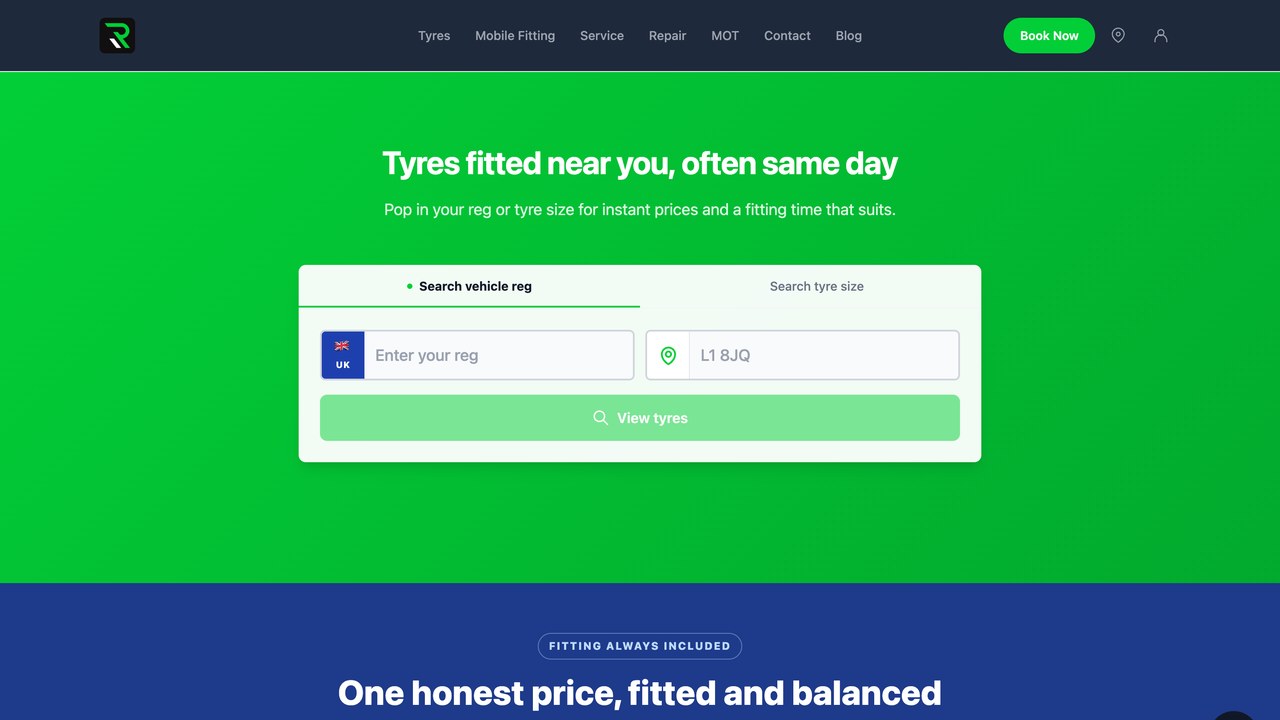
Open the builder and pick a template
In your workspace, open Setup and choose Storefront. You will see a short list of templates built for tyre and service businesses. They differ in layout and mood rather than in what they can do, so pick the one that looks most like the shop you run and move on. Nothing you choose here is permanent.
The builder creates a draft site under a preview address straight away. Open that preview in another tab and keep it open while you work; every change you save shows there within a few seconds, which is far quicker than imagining how a setting will look.
The template already contains the pages a customer expects: home, tyres, services, about, contact. You do not need to add pages before launch. You need to fill the ones that are there.
Put your business details in first
Before anything decorative, complete the business panel: trading name, address or coverage area, phone, opening hours, and whether you fit in a workshop, at the roadside, or both. These feed the header, the footer, the contact page and the structured data search engines read, so they are worth five careful minutes.
Add a logo if you have one. If you do not, type your trading name and the builder sets it in a clean wordmark. A missing logo is fine; a stretched or blurry one is not, so upload the largest clean version you own rather than a screenshot.
Pick a primary colour from your signage or van livery. The template uses it sparingly for buttons and highlights, which is exactly where it belongs.
Check vehicle lookup and the tyre engine on the preview
The lookup box on the home page is live even on the preview. Type your own registration and watch what happens: the site resolves the vehicle, shows the approved sizes, and lists tyres with a fitted price. Those prices come from your tyre range if you have priced one, and from the estimate layer if you have not, so the engine works on day one either way.
- Try a van or a staggered fitment as well as a car, so you see how front and rear sizes are handled.
- Click through to the booking step and stop before paying. The slot picker reads your schedule, so what you see is what a customer sees.
- Check the services tab shows the services you intend to sell. Anything missing can be added from Setup later without touching the site.
If a lookup fails for a registration you know is valid, note the plate and carry on. The lookup provider for your country may need a moment, and the setup guide inside the workspace has a check for exactly this.
Write less than you think you need
The template ships with placeholder copy. Replace it with short, plain sentences in your own voice: who you are, where you fit, how a booking works, how a customer pays. Customers scan a tyre site in a few seconds and decide on three things: can you do my car, what does it cost, and when can I come. Everything else is secondary.
Leave the long pages about the history of the business for later, if ever. A home page that answers those three questions with a working lookup box converts better than a beautiful page that makes a customer hunt for the booking button.
Use real photographs of your workshop or van where the template asks for images. A phone photo in daylight beats a stock image of a shop that is not yours.
Launch, then point a domain at it
When the preview looks right and you have set up your storefront the way you want it, press Launch. The site is built and published to its production address within a couple of minutes, and the workspace keeps that address in the Storefront panel. Share it on your social pages and your invoices from that moment; there is no reason to wait for a custom domain.
If you own a domain already, add it in the Storefront panel. The builder shows you the two records to add at your domain provider, and once they resolve the site answers on your own name with a certificate issued for you. If you do not own a domain, the production address is perfectly usable and many businesses run on it for months.
After launch, open the live site on your phone. Type a registration, pick a slot, and go as far as the payment page. If that journey feels right to you, it will feel right to a customer. If anything jars, fix it in the builder and launch again; a relaunch takes the same couple of minutes.
What changes after you are live
Your tyre range, your services and your schedule all feed the storefront automatically. When you price a new size, it appears on the site. When you block out a Saturday, that Saturday disappears from the slot picker. You never edit the site to change a price.
Bookings made on the site arrive as jobs in your workspace, with the customer, the vehicle, the tyres and the slot already filled in. The first time one lands while you are under a car is the moment the storefront pays for itself.
Yleisimmät kysymykset
Do I need a web designer to set up my storefront?
No. The builder is made for tyre and service businesses, and the template already contains the pages and the booking flow. Most workshops go from draft to live in an afternoon with no outside help.
Does the vehicle lookup work before I have priced any tyres?
Yes. Until you price your own range, the tyre engine shows estimate prices for your market, so a customer can still see what fits and book. Your own prices replace the estimates the moment you set them.
Can I use my own domain name?
Yes. Add it in the Storefront panel, create the two records the builder shows you at your domain provider, and the site answers on your domain with its own certificate once they resolve.
What happens to a booking made on the site?
It becomes a job in your workspace with the customer, vehicle, tyres and slot already filled in, and it appears on your schedule. You are notified in the workspace and in the Fixer app.
Can I change the site after launch?
As often as you like. Edit in the builder, check the preview, and launch again. Prices, services and availability update on the live site on their own without a relaunch.
Lue lisää tällaisista
Rengashinnat ilman taulukkoa
Käsin hinnoittelu vanhenee heti, kun toimittajalista muuttuu. Hinnoittele säännöillä ja anna sääntöjen päivittää.
Ajoneuvon rekisteritietojen haku
Rekisteritietojen haku poistaa suurimman esteen verkkorengasmyyntiin: hetken, jolloin kysyt asiakkaalta tuntematonta kokoa.
EU:n rengasmerkintä myymälässäsi
EU:n rengasmerkintä on velvoite ja myyntityökalu. Tässä mitä liikkeen on näytettävä, mistä tiedot tulevat ja miten niitä käytetään kaupassa.