
Slots that exist in real life.
Online booking only works if the slots a customer sees are slots you can honour. The schedule in your workspace is where that promise is made: your opening hours, the bays or vans you run, the time each job takes, and the days you are closed. This guide shows how to set up your schedule during the trial so the storefront, the customer network and your own bookings all draw from one honest diary.
Set your hours, including the awkward ones
Open Setup and choose Schedule. The first panel is opening hours by day. Enter them as they really are, including a Saturday half day and the Wednesday you close early. The slot picker only offers times inside these hours, so a wrong entry here is a booking you cannot do.
Add a lunch break if you stop for one. Add the bank holidays you close. A closed day costs nothing to enter and saves a phone call to a customer who booked a slot that did not exist.
Add your bays, your vans, or both
The schedule runs on resources: a bay in a workshop, a van on the road, or a named fitter if that is how you think about capacity. Add one for each thing that can do a job at the same time. Two bays means two jobs can run at ten o'clock; one van means one.
If you do mobile and workshop work, add both kinds. A mobile booking is offered van slots and a workshop booking is offered bay slots, and the two never collide.
- Give each resource its own hours if they differ, such as a van that starts at seven and a bay that opens at eight.
- Mark a resource unavailable for a day when it is off the road or waiting for a part.
- Assign fitters to resources so the Fixer app shows each person their own day.
Give every job a realistic duration
A slot is only honest if the job fits in it. Each tyre fitting and each service carries a duration, set in Tyres and Services. Four tyres on a car is usually forty-five minutes to an hour; a full service is longer; a puncture repair is shorter. If you set these honestly, the schedule stops you from being double booked without you thinking about it.
For mobile work, add travel time per job in the schedule settings. The slot picker leaves that gap between bookings so a van is not expected to be in two places at once.
Decide how far ahead customers can book
The schedule lets you choose how soon and how far ahead a customer can book: no sooner than tomorrow, for example, so a tyre can be ordered in, and no further than four weeks, so a diary does not fill with far-off bookings you cannot plan around. Most workshops allow next-day booking for stocked sizes and two days for ordered ones.
You can also hold back slots for walk-ins and phone bookings, so the online diary never takes every minute of the day.
Watch a booking land
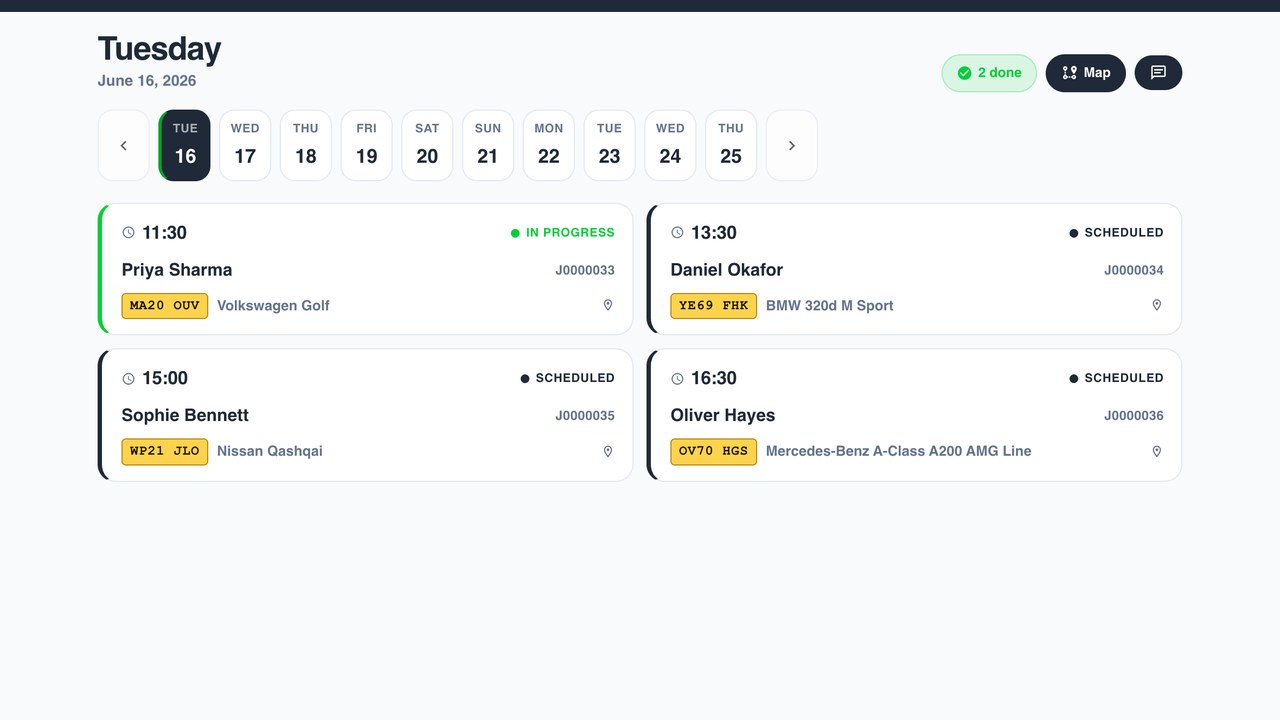
Open your storefront, look up a registration, pick a tyre and go to the slot step. The times offered are the gaps in the schedule you just built. Book one as a test and watch it appear on the diary in the workspace, on the resource you expected, with the duration you set.
Drag it to another time. The customer is sent the new time if you leave the switch on. Drag it to another bay or van and the Fixer app for that fitter updates. This is the diary your whole team will live in, so it is worth ten minutes of playing with it.
Holidays, sickness and the days that go wrong
A resource can be closed for a day or a week in two clicks, so a fitter's holiday or a van in for repair takes those slots off the storefront before anyone books them. If the diary already holds bookings on a day that has just become impossible, the schedule lists them so you can move or ring each one rather than discovering them at eight in the morning.
A sick day is the same action, done earlier in the morning than you would like. Mark the resource closed, look at the list, and move what you can onto the other bay or the other van.
Run the day from the schedule
Each morning the schedule is the plan: who is doing what, where, and when. Jobs turn colour as they are started and completed in the Fixer app, so you see the day move without asking anyone. A job running long shows as overlapping the next one, which is your cue to ring the next customer before they arrive.
At the end of the trial, this is the screen most workshops say they could not go back from.
Common questions
What is a resource?
Anything that can do one job at a time: a workshop bay, a van, or a named fitter. The schedule offers one slot per resource per time, which is what stops double booking.
How does the schedule know how long a job takes?
From the duration on each tyre fitting and each service. Set them honestly in Tyres and Services and the slot picker leaves the right gap.
Can I keep some slots for phone and walk-in customers?
Yes. Set a number of held slots per day in the schedule settings and the online diary never offers them.
Can I stop same-day online bookings?
Yes. Set the earliest booking to tomorrow, or to two days for tyres you need to order, and the storefront only offers slots from then.
What happens when I move a booking?
The customer is sent the new time if confirmations are on, and the Fixer app for the assigned fitter updates straight away.
Read more like this
Tyre pricing without the spreadsheet
Tyre pricing by hand drifts out of date the moment a supplier list changes. Price by rule instead, and let the rules do the updating.
Vehicle registration lookup
Vehicle registration lookup removes the biggest drop-off in online tyre sales: the moment you ask a customer for a size they do not know.
The EU tyre label on your storefront
The EU tyre label is an obligation and a sales tool. Here is what a shop has to display, where the data comes from, and how to use it to trade up.