
The job card in your pocket.
The workspace runs the business. Fixer runs the day. It is the app your fitters carry: the next job, the vehicle, what was booked, directions to a mobile customer, a camera for the tread and the paperwork, and a way to take payment at the car. This guide shows how to get the Fixer app during the trial, pair it with your workspace, and do one job on it so you know what your team will see.
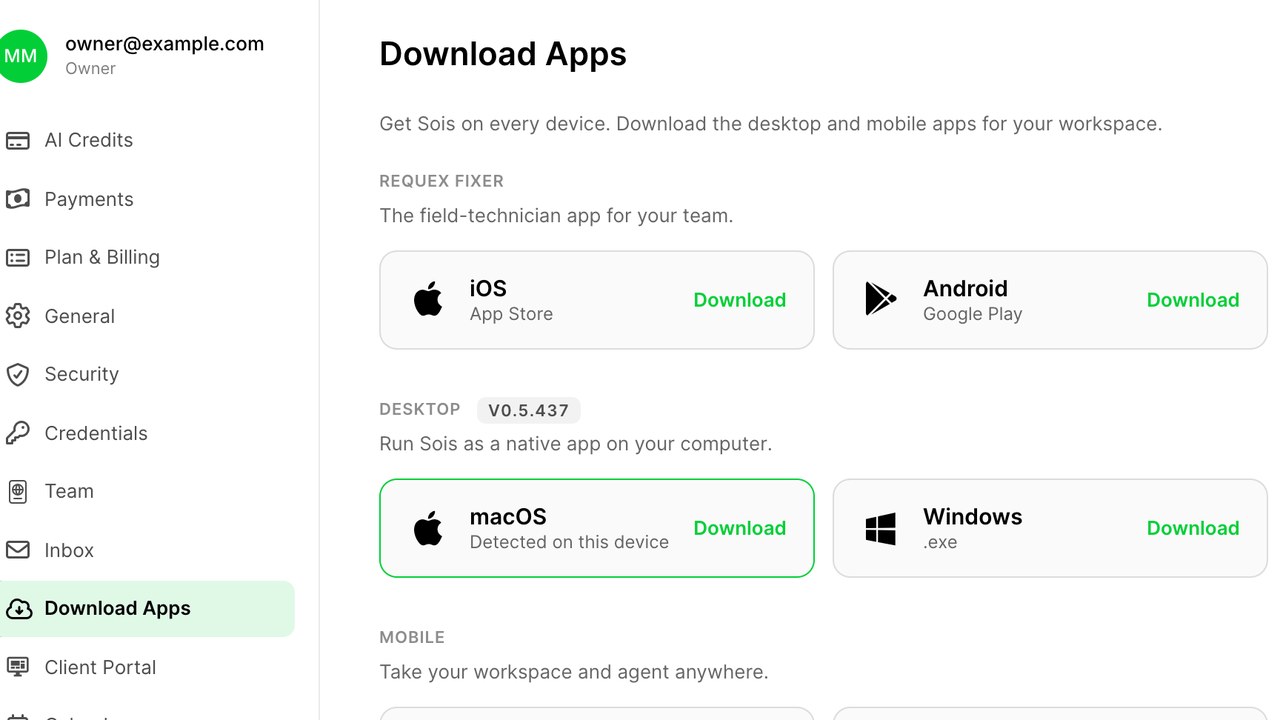
Install it from the store
Fixer is a free app on the Apple App Store and Google Play. Search for Requex Fixer, or open Setup in your workspace and choose Mobile App, where the two store buttons are. Install it on your own phone first; you will hand it to the team once you have seen it work.
The app does nothing until it is paired with a workspace, so a fresh install shows a single pairing screen. That is expected.
Pair it with a code from the workspace
In the workspace, open Setup, Mobile App, and press Create a pairing code. A short code appears with a time limit. Type it into the app, or scan it if your phone offers the camera. The app connects to your workspace and shows your name and the business.
Each person gets their own code, tied to their login, so the workspace knows who started and completed a job. Never share one code across a team; make one per fitter, which takes seconds each.
- A lost phone is handled from the workspace: revoke that pairing and the app on that device goes blank.
- A new phone is paired with a new code; nothing needs reinstalling on the workspace side.
- A fitter can be paired on two devices, such as a phone and a tablet in the van.
What a fitter sees
The home screen is today: the jobs assigned to that person, in order, with the time, the customer, the vehicle and what was booked. Tapping a job opens the card with the notes from the booking, the tyre sizes, the services, and a map button for mobile jobs.
Nothing in the app needs the office. A fitter at a roadside with no signal can still open the job, take the photos and mark it done; the app sends everything when the signal returns.
Do one job end to end
Create a test job in the workspace and assign it to yourself. On the phone, start it. Take a photo of a tyre, which is stored against the job and shown to the customer on the invoice if you choose. Add a note. Mark it complete. In the workspace, the job shows the photos, the note and the time it took.
If payments are connected, press Take payment on the completed job. On a recent iPhone or Android phone, the customer taps their card on the back of the phone. The job is marked paid, the receipt goes to the customer, and nobody has to carry a card machine.
Hand it to the team
Once you have done one job yourself, make a pairing code for each fitter and send them the store link. Pairing is two minutes a person. Assign tomorrow's jobs to them in the schedule and the app shows each person their own day the next morning.
Fitters only see what you give them. A fitter sees their jobs, not your prices, your reports or your customer list, unless you grant that in the team settings.
Settings worth checking on the first day
Three settings in the app change how the day feels. Notifications: turn them on so a new or moved job reaches the phone without the fitter opening the app. Photos: choose whether a tread photo is required before a tyre job can be marked complete, which most workshops switch on because it settles the odd dispute about what was fitted. Location: for mobile work, allowing the app to use the phone's position lets the workspace show where the van is, which is useful to the person answering the phone when a customer asks how long the fitter will be.
Each is a single switch, and each can be changed later from the workspace without touching the phone. The defaults are sensible if you would rather leave them for now.
Why the trial is the time to do this
Most of what the workspace records about a job, from the tread photo to the time taken, comes from the app. A trial run without Fixer is a trial of the office half only. Pair it on day one of the team's involvement and the reports, the reminders and the invoices all fill with real information from real jobs.
Pogosta vprašanja
Is the Fixer app free?
Yes. It is included with your workspace. Install it from the App Store or Google Play and pair it with a code from Setup.
Does each fitter need their own pairing?
Yes. One code per person, tied to their login, so the workspace records who did each job and a lost phone can be revoked on its own.
Does it work without a signal?
Yes. Jobs already loaded can be opened, photographed and completed offline, and the app sends everything when the connection returns.
Can fitters take payment in the app?
Yes, once payments are connected. On a recent phone the customer taps their card on the back of the device, and the job is marked paid.
What can a fitter see in the app?
Their own jobs and the details needed to do them. Prices, reports and the customer list stay in the workspace unless you grant access in team settings.
Preberite več takšnih
Cene pnevmatik brez preglednice
Cene pnevmatik ročno hitro zastarajo ob spremembi dobaviteljev. Uporabite pravila in pustite, da ta posodabljajo cene.
Iskanje registracije vozila
Iskanje registracije vozila odpravi največje izgube pri spletni prodaji pnevmatik: ko stranka ne pozna velikosti.
EU oznaka pnevmatik na vaši trgovini
EU oznaka pnevmatik je obveznost in prodajno orodje. Tukaj je, kaj mora trgovina prikazati, od kod podatki in kako jih uporabiti za prodajo.