
Everyone on their own login.
A workspace with one login is a workspace where every job was done by "admin" and every photo was taken by nobody in particular. This guide shows how to add your team during the trial: a login for each person, the Fixer app paired to them, and permissions that give a fitter their jobs without giving them your prices or your reports. It takes a few minutes a person and changes what every report in the workspace can tell you.
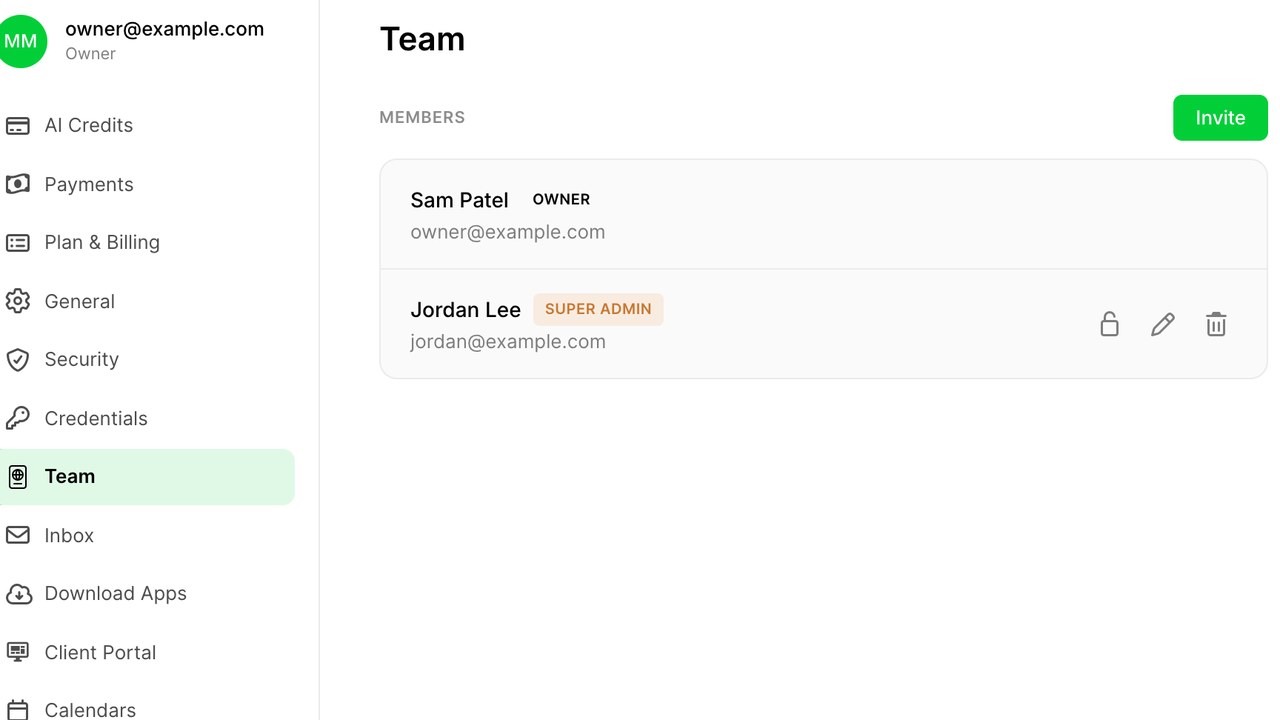
Invite each person by email
Open Settings and choose Team. Press Invite, enter a name and an email address, and choose a role. The person receives an email with a link to set their own password. You never know or type their password, and a leaver is removed with one press.
If a fitter does not use email, invite them with a mobile number instead and they receive the link by text. The Fixer app pairing comes next and works the same way for everyone.
Choose a role, then adjust if you need to
Roles are starting points: owner, manager, fitter, front desk. A fitter sees their jobs, the vehicles and the notes, and can take photos and payments. Front desk can create jobs, book slots and invoice. A manager sees everything but billing. The owner sees it all.
- Permissions can be adjusted per person. A senior fitter who quotes jobs can be given quoting without the rest of a manager role.
- Prices, reports and the customer list are hidden from the fitter role by default.
- A person can be in more than one role if they genuinely do both jobs.
Keep it simple to begin with. Most workshops use the four roles as they are and adjust one or two people later.
Pair the Fixer app to each person
Once a person has set their password, create a pairing code for them in Setup, Mobile App, and send them the store link. They install the app, enter the code, and see their own day. The pairing is tied to their login, so the workspace records who started and completed every job.
A phone that is lost or a person who leaves is handled from Team: remove the person and every pairing they had stops working at once.
Assign work by name
With people in the workspace, the schedule can assign jobs to a person as well as to a bay or a van. Drag a job onto a fitter and it appears in their app. Tomorrow's diary becomes a list per person, and the morning conversation about who is doing what becomes unnecessary.
Jobs from the storefront or the customer network land unassigned by default. Assign them when you plan the day, or set a default person per resource so they go to the right fitter on their own.
See who did what
Every job records who created it, who did it and who took the payment. Reports can be filtered by person: jobs completed, time taken, photos added, payments taken. That is useful for paying a bonus fairly and for spotting the fitter whose jobs always run long before it becomes a problem.
The history on a customer record shows which of your team they have dealt with, which is a small thing until a customer asks for the person who did their tyres last time.
Add your team in stages if that is easier
You do not have to add your team all at once. Many workshops add the front desk first, because creating jobs and booking slots is where the saving shows soonest, then the fitters a few days later once the schedule has a week of real bookings on it. A fitter who installs the app and sees an empty day is not impressed; a fitter who sees tomorrow's three jobs with the tyre sizes on them is.
When you add your team, tell them what the app is for in one sentence: it replaces the paper job sheet and the end-of-day questions. Then do one job on it with each person watching.
- Start the job together, take the tread photo, mark it done. The first day on the app is the only day it needs explaining.
- Part-time and weekend staff get their own login too. There is no reason to share a login to save a seat.
- A subcontractor you use now and then can be added for the week and removed after, keeping their history on the jobs they did.
Protect the account
Ask each person to turn on two-step sign-in from their profile; it takes a minute and the workspace prompts them. The owner login should always have it. If someone leaves, remove them the same day. A former employee with a live login to your customer list is a risk nobody needs.
Perguntas frequentes
Does each fitter need their own login?
Yes. It is how the workspace records who did each job, and it is what lets you remove one person without affecting anyone else.
Can a fitter see my prices and reports?
Not by default. The fitter role shows their jobs, the vehicles and the notes. Prices, reports and the customer list need a manager or owner role, or a specific permission you grant.
Is there a charge per user?
Team members are included in the workspace plan up to the number shown on your plan page. The Fixer app is free for every paired person.
What happens when someone leaves?
Remove them in Team. Their login and every Fixer pairing they had stop working at once, and their history on jobs is kept.
Can I invite someone without an email address?
Yes. Invite them by mobile number and the link to set a password arrives by text.
Leia mais como este
Preço de pneus sem planilha
Preço manual de pneus fica desatualizado com mudanças na lista de fornecedores. Use regras e deixe-as atualizar.
Consulta de registro de veículos
A consulta de registro elimina a maior queda nas vendas online de pneus: quando você pede um tamanho que o cliente não sabe.
O selo de pneus da UE na sua loja
O selo de pneus da UE é uma obrigação e uma ferramenta de vendas. Veja o que a loja deve exibir, de onde vem os dados e como usá-los para vender mais.