
Paid before you have packed up.
Getting paid should be the easiest part of a job and in many workshops it is the slowest: a card machine with a flat battery, an invoice chased for a fortnight, a transfer that arrives with no reference. This guide shows how to take card payments through your workspace during the trial, so a storefront booking is paid at the time of booking, a roadside job is paid at the car, and every payment lands against the right job without anyone typing it in.
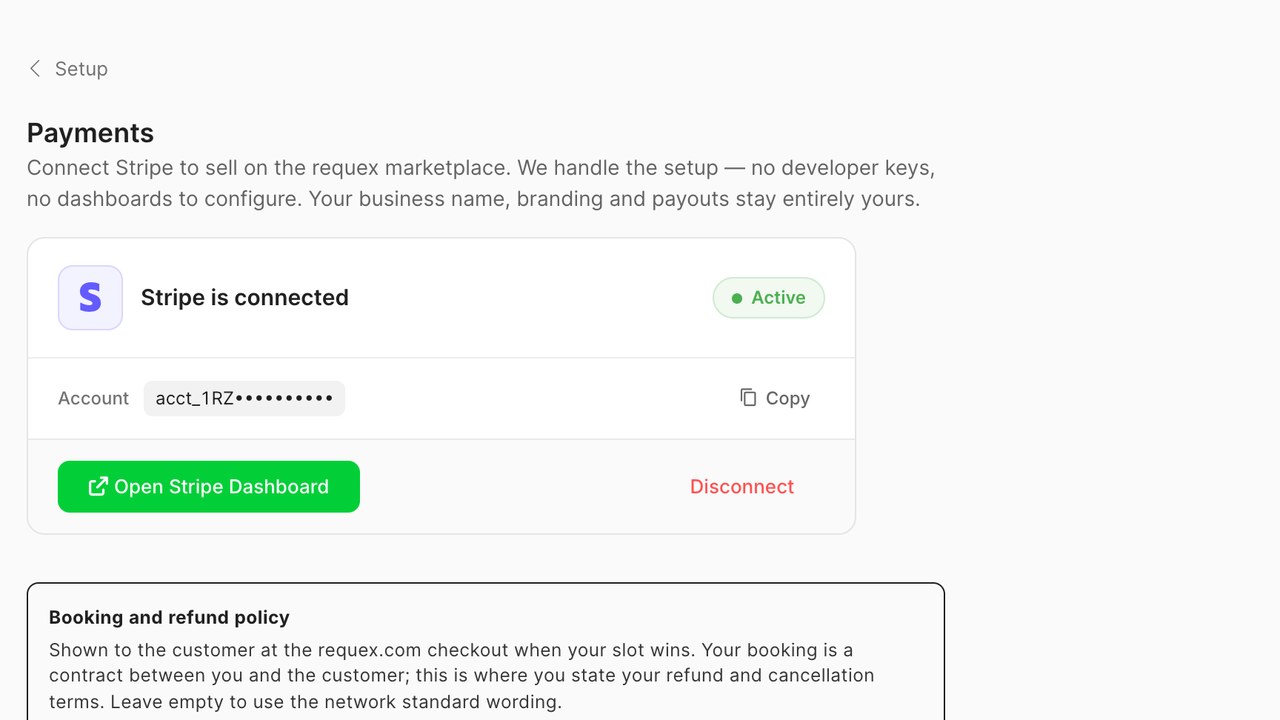
Connect payments once
Open Settings and choose Payments. Press Connect and you are taken through a short identity and bank account form from the payment provider. It asks for the business details, a bank account for payouts, and a document or two for the person responsible. Most workshops finish it in ten minutes, and the account is usually live the same day.
There is nothing to install and no card machine to rent. Payouts go to your bank on a rolling schedule, with a statement in the workspace that matches each payout to the jobs it covers.
Decide when a storefront booking is charged
In the Payments panel, choose whether online bookings are paid in full at booking, pay a deposit, or pay nothing until the job is done. Paid in full suits tyres, where the tyre is ordered against the booking and a no-show costs you. A deposit suits services where the final bill may change. Pay later suits regulars.
- A paid booking cannot be a no-show in the same way; customers who have paid turn up.
- A deposit is taken off the final invoice automatically.
- Refunds, where you choose to make one, are issued from the job and go back to the same card.
Whatever you choose, the customer sees it clearly on the booking page before they confirm.
Take payment at the car with a phone
Once payments are connected, the Fixer app can take a card at the job. On a recent iPhone or Android phone, press Take payment on a completed job and the customer taps their card or phone on the back of the device. No reader, no cable, no battery to charge. The amount comes from the job, so there is nothing to key in.
The receipt is sent to the customer by text or email, and the job is marked paid in the workspace before the fitter has driven off. For a workshop, the same works at the counter on a tablet or a phone.
Send a payment link when you are not there
A job that was done on account, or a customer who wants to pay later, can be sent a payment link from the job or the invoice. They pay on their phone and the job is marked paid when they do. The link is the single most effective thing in the workspace for shortening the time between an invoice and the money arriving.
Reminders for unpaid invoices can go out on a schedule you set, each carrying the same link.
See what you have been paid
The Payments panel lists every payment against its job and every payout against its payments. When a payout reaches your bank, the statement shows which jobs it covered, less the provider fee, so reconciling with your accounts is reading a list rather than guessing.
If you connect cloud accounting, each payment is recorded there as well, against the invoice it settled.
Cards at the counter and over the phone
Not every payment happens at a car. For a workshop with a counter, the same Fixer app on a tablet or a phone takes a tap at the desk, and a customer who prefers to pay over the phone can be sent the payment link by text while you are still talking to them; they pay on their own phone and you watch the job turn green.
- If you already rent a card terminal, keep it for now and record the payment on the job by hand. Most workshops that take card payments through the app stop renting the terminal within a month.
- Account customers, such as a small fleet, can be invoiced weekly and pay every invoice from one link.
- Cash is still cash. Record it on the job so the job is marked paid and the day's takings add up.
The point is that every way of being paid ends in the same place: the job, marked paid, with the money on its way to your bank and a receipt with the customer.
Try it during the trial
Connect payments, create a test job for a small amount, and take the payment on your own phone with your own card. Refund it from the job afterwards. That ten-minute loop is the whole system, and it is the difference between a trial that shows you a diary and a trial that shows you money arriving against jobs on its own.
Questions fréquentes
Do I need a card machine?
No. A recent iPhone or Android phone running the Fixer app takes contactless cards directly. A tablet or phone at the counter does the same in the workshop.
How long does connecting take?
About ten minutes for the form, and the account is usually live the same day. Payouts to your bank start on the provider's rolling schedule.
Can I take a deposit rather than full payment online?
Yes. Choose full payment, a deposit, or pay later per booking type in the Payments panel, and the deposit is taken off the final invoice automatically.
How do I refund a customer?
From the job. The refund goes back to the card that paid and the job shows it.
Quel est le tarif ?
A per-transaction fee from the payment provider, shown on every payout statement. There is no monthly fee for taking payments and no card machine rental.
Lire plus comme ça
Tarification des pneus sans tableau
La tarification manuelle devient vite obsolète. Fixez des prix par règles et laissez-les se mettre à jour.
Recherche d'immatriculation
La recherche d'immatriculation élimine le principal obstacle aux ventes en ligne : demander une taille inconnue au client.
L'étiquette européenne des pneus sur votre vitrine
L'étiquette est obligatoire et un outil de vente. Voici ce qu'un centre auto doit afficher, d'où viennent les données et comment les utiliser.