
Month end that does itself.
Every invoice you raise has to end up in your books. In most workshops that means an evening a month retyping them, or a bookkeeper doing it for you at an hourly rate. This guide shows how to connect your accounts during the trial, so each invoice and each payment is copied into Xero, QuickBooks or Sage the moment it happens, against the right customer and the right account, with nothing to retype.
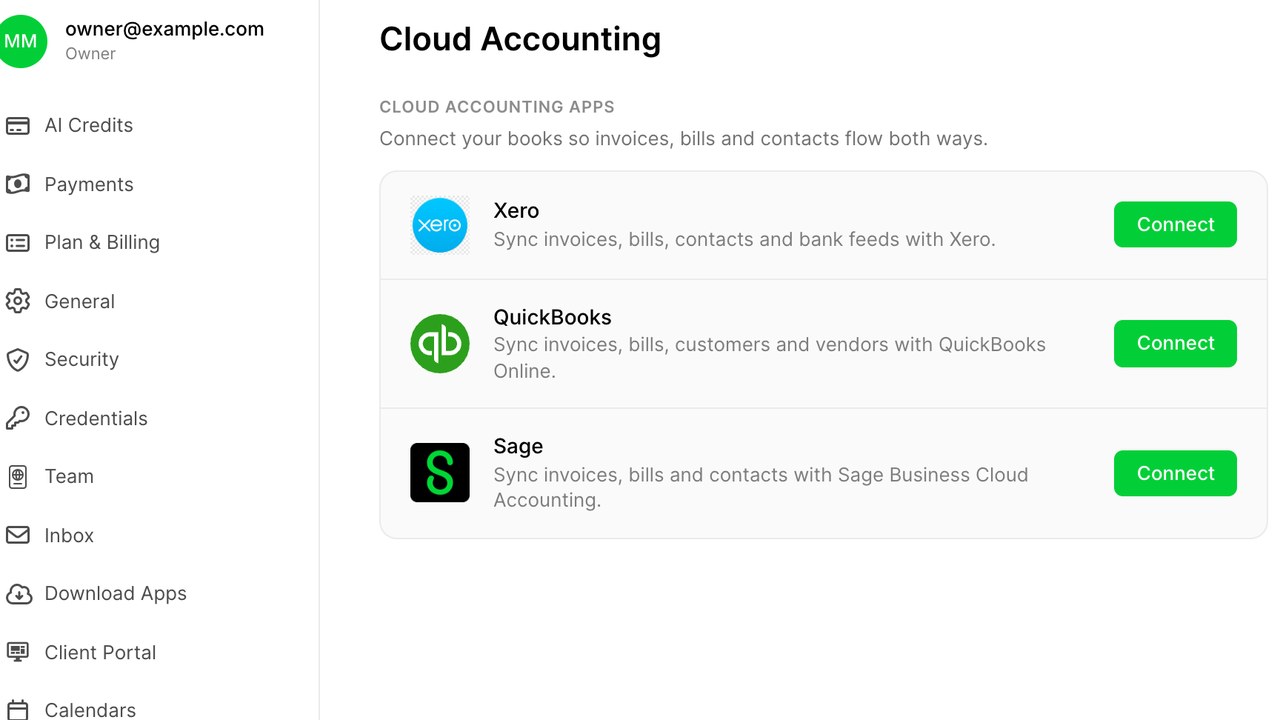
Pick your provider and sign in
Open Settings and choose Cloud Accounting. Choose Xero, QuickBooks or Sage and press Connect. You are taken to your provider to sign in and allow the connection, then brought back to the workspace. The whole step takes a minute if you have your accounting login to hand.
If you use an accountant who holds the login, send them this page. The connection is made once and does not need their login again.
Map your accounts once
After connecting, the workspace shows a short mapping panel: which sales account tyres go to, which one services go to, which bank account payments settle into, and which tax rates apply. It suggests sensible defaults from your chart of accounts. Check them with whoever does your books and save.
- Separate sales accounts for tyres and labour give you a margin report in your accounts without any extra work.
- The payments bank account should be the one your card payouts land in, so reconciliation matches.
- Tax rates are pulled from the provider, so you choose from the ones you already use.
This mapping is the whole configuration. Everything after it is automatic.
Watch an invoice arrive in your books
Create a test job, invoice it, and open your accounting software. The invoice is there within a minute, under the customer, with the lines, the tax and the invoice number from the workspace. If the customer did not exist in your books, they were created. If they did, the invoice attached to them.
Take a payment on the job, and the payment appears against that invoice in your books, in the bank account you mapped. When the payout reaches your bank, reconciliation is a matter of matching one line.
What syncs and what does not
Invoices, credit notes, payments and customers sync from the workspace to your accounts. Purchase bills from suppliers can be matched to supplier orders if you use them. Nothing syncs back the other way into jobs, so your workspace is never changed by an edit in the accounts.
Jobs that are not yet invoiced do not sync, and a quote does not sync. Only money you have asked for or received reaches the books, which is what a bookkeeper wants.
When something does not match
The Cloud Accounting panel shows every invoice with its sync state. A green tick is in your books. An item with a warning tells you why: a tax rate the provider does not have, a customer with the same name twice, a closed period. Fix the cause and press Retry, and it goes.
The panel is worth a glance once a week during the trial. After a fortnight it is usually all ticks, and most workshops stop looking.
If your books are not clean yet
A connection works best against tidy books, but nobody waits for tidy books. If your accounts hold duplicate customers, the sync attaches invoices to the one that matches the email or the name exactly and flags the ones it cannot choose between, so you fix them one at a time as they come up rather than all at once before you start.
If a tax rate you use in the workspace does not exist in your accounts, add it there once and press Retry. If you change accounting software during the trial, disconnect the old provider and connect the new one; invoices already synced stay where they were, and new ones go to the new provider.
What your bookkeeper sees
Invoices arrive in your accounts as approved sales invoices, numbered from the workspace, with the customer and the lines intact. Payments arrive as receipts against them in the bank account you mapped. Credit notes arrive as credit notes. Nothing arrives as a draft to be chased, and nothing has to be explained; the bookkeeper sees sales they can reconcile, which is the only thing they ever wanted from you.
What it means for the end of the month
Nothing to retype, nothing missed, and a set of accounts that matches the workspace to the penny. Your accountant sees invoices as they are raised rather than in a batch, which usually means fewer questions and a quicker year end.
If you have been paying someone to key invoices in, the hour it takes to connect your accounts is the feature that pays for the subscription on its own.
Veelgestelde vragen
Which accounting software is supported?
Xero, QuickBooks Online and Sage. Choose one in Settings, Cloud Accounting, sign in to it, and map a handful of accounts once.
Does it need my accountant's login?
Only once, to allow the connection. After that the workspace syncs on its own and nobody needs to sign in again.
What gets copied into my books?
Invoices, credit notes, payments and customers, as they happen. Quotes and uninvoiced jobs stay in the workspace.
Can a change in my accounts alter a job?
No. The sync is one way, from the workspace to your accounts, so an edit in the books never changes a job or an invoice in the workspace.
What if an invoice fails to sync?
The Cloud Accounting panel shows it with the reason, such as a missing tax rate. Fix the cause and press Retry.
Lees meer zoals dit
Bandenprijzen zonder spreadsheet
Handmatige bandenprijzen verouderen direct bij een wijziging in de leverancierslijst. Prijs op basis van regels en laat die de updates doen.
Kentekenregistratie opzoeken
Kentekenregistratie voorkomt de grootste afname in online bandenverkoop: het moment dat je een klant om een maat vraagt die ze niet weten.
Het EU-bandenlabel in je winkel
Het EU-bandenlabel is verplicht en een verkooptool. Dit moet een winkel tonen, waar de data vandaan komt en hoe je het kunt gebruiken om te verkopen.