
One card, the whole story.
Everything in the workspace is built around a job: the customer and their vehicle, the tires or services, the slot on the schedule, the photos your installer takes, the payment and the invoice. Until you have one, the other features are theory. This guide shows how to create your first job during the trial, either by typing one in for a real booking or by walking a test job all the way through, so you can see what follows from it.
Where jobs come from
A job arrives three ways. A customer books on your storefront and it appears already filled in. A customer on the Requex network accepts your price and it appears with the vehicle, tire size and price agreed. Or you create it yourself, for the customer who rang, walked in, or messaged you on a Sunday night. The third kind is the one this guide covers, because it is the fastest way to see the whole system working.
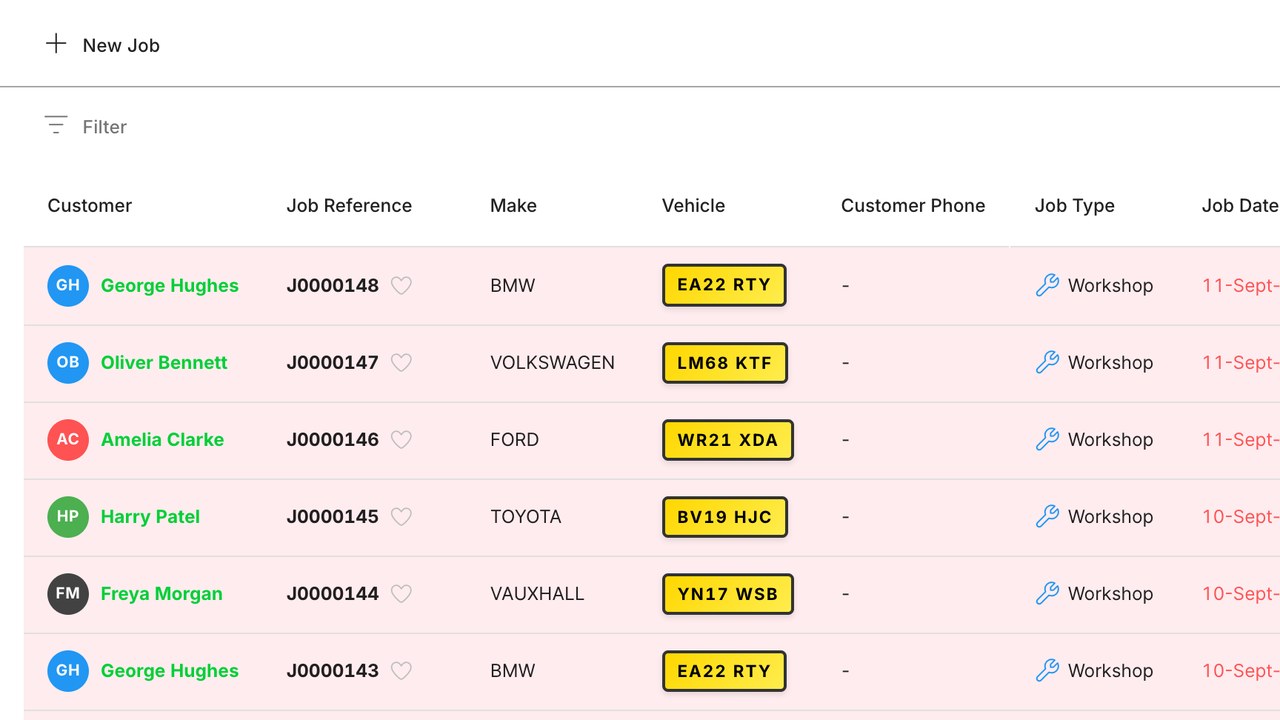
Open the Jobs tab and press New job. The form is short on purpose. It asks for the vehicle first, because the vehicle decides almost everything else.
Start with the registration
Type the registration. The lookup resolves the make, model, year, fuel type and the approved tire sizes, so you do not type any of that. If the customer has been in before, the vehicle is already on their record and the job attaches to it.
If this is a test, use your own vehicle. A real registration gives you a real fitment, which makes the tire step below meaningful. If a lookup fails, enter the make and model by hand; the job does not need the lookup to exist, it is just quicker with it.
Add the customer, or create one in a line
Type a name or a phone number. If the customer exists, pick them. If not, enter a name and a mobile number and move on; the email and address can come later, and the mobile is what the confirmation and reminders use. A job never needs a complete customer record to be created.
Customers created this way build your customer list as you go, which matters later for reminders. Every job you create during the trial is a customer who will be reminded when their tires, service or annual test come round.
Choose the work: tires, services, or both
The tire picker shows the sizes that fit the vehicle, with your prices if you have set them and estimates if you have not. Pick a tire and a quantity. The service picker shows your fixed-price menu. Add a wheel alignment or a brake check alongside the tires if that is what the customer wants.
- The job total updates as you add lines, installed and with tax, so you can read the price to the customer on the phone.
- Parts not on your menu can be added as a free line with a description and a price.
- Notes typed here are seen by whoever does the work in the Fixer app, so "customer waiting" or "key under the mat" belongs in this box.
Give it a slot and save
The slot picker reads your schedule: your hours, your bays or vans, and the duration of the work you added. Pick a time or leave the job unscheduled if the customer is still deciding. Press Save, and the job exists.
From this moment the job is on the schedule, visible in the Fixer app to whoever is assigned, and ready to be invoiced. The confirmation text to the customer goes out on save if you leave the switch on. For a test job, switch it off first, or send it to yourself.
Walk it through to the end
Open the job on your phone in the Fixer app. Start it, add a photo of the tire tread, mark it complete. Back in the workspace, the job shows the photos and the time taken. Press Invoice, and the invoice is built from the lines on the job. Take a payment, and the job is marked paid.
That walk takes ten minutes and shows you the whole workspace: scheduling, the field app, invoicing and payment, all from one card. Delete the test job afterwards if you used a made-up customer, or keep it if it was real; it will be the first of many.
Common questions
Do I need a complete customer record to create a job?
No. A name and a mobile number are enough to create the job and send the confirmation. Email and address can be added later from the customer record.
What if the registration lookup does not find the car?
Enter the make and model by hand. The job does not depend on the lookup; the lookup just saves typing and gives you the approved tire sizes.
Can I create a job without a slot?
Yes. Leave it unscheduled and it sits in the jobs list until the customer confirms a time. You can drag it onto the schedule later.
Does creating a job send anything to the customer?
A confirmation text goes out on save if the switch is on. For a test, switch it off or use your own number.
What happens to the job in the Fixer app?
It appears for whoever is assigned, with the vehicle, the work and the notes. They start it, add photos, mark it complete, and the workspace updates as they go.
Read more like this
Tire pricing without the spreadsheet
Tire pricing by hand drifts out of date the moment a supplier list changes. Price by rule instead, and let the rules do the updating.
Vehicle registration lookup
Vehicle registration lookup removes the biggest drop-off in online tire sales: the moment you ask a customer for a size they do not know.
The EU tire label on your storefront
The EU tire label is an obligation and a sales tool. Here is what a shop has to display, where the data comes from, and how to use it to trade up.